
Monday, September 24, 2012

Default Notebook Coolers : A Buyers Guide


This is the third major update of this buyers guide for users in search of a notebook cooler. I have written this guide in order to help users avoid the myths and legends that are out there about notebook coolers.

Pictures are from various sources including reviewers and forum members as well as manufacturer sites. Thank you.

I am working on a way to integrate prices please be patient.

I am sorry for the deley in the release of this update but this has been a MAJOR update and has been very very time consuming for me. If there are any issues please PM me or post.


What is a “notebook cooler”


The name should be self explanatory but for those who find it not, a notebook cooler is a device that may or may not use fans and normally sits underneath your notebook in order to provide extra cooling for the notebook.


What use are they?


There are many bashers out there about notebook coolers. Truth be told, every laptop will have different results with different or even same coolers. In general though a notebook cooler is quite helpful at lowering temperatures of components within a notebook. Many claim that a notebook cooler will do next to nothing and are “useless” or a waste of money as the post below shows (click for original). 

This is a false statement and the user probably did not a) choose a good cooler for his system b) choose a sub-par cooler c) is having a bad day.

Most people do notice a difference with coolers if don’t properly and for some where the cooler can only hit a 1-5C difference it can mean all the difference in the world. If you look at Cooling Central under “are you over heating?” temperatures enter risky territory when a video card reaches 90-95C, a processor reaches 70C or a hard drive reaches 60-65C. Those are just risky temperatures and there are also “threshold” temperatures as well which are higher and can be viewed at Cooling Central. But for users who reach temperatures around or excess of those that are known to be dangerously high it 2C can make a difference.

One issue that most users also have with notebook coolers being “ineffective” for them is that many users expect far too much out of a notebook cooler. Yes people do see massive differences but many are happy with slight differences. Do not expect a notebook cooler to be a “savior” although it may be the case for some.

A notebook cooler can also extend the life of a notebook as a major enemy and killer of any electronic device is heat. Unfortunately notebooks are not excluded. Many notebooks have heat issues and a notebook cooler is just one of the possible solutions and is a road that some users may want to venture.

There are also users who have purchased notebooks which have noisy fan(s) and during normal usage cannot stand the sound of those fan(s). Some notebook coolers can run quieter then even an average notebook fan.


Which one is right for me?


There are a few steps you can take in order to choose a good notebook cooler for you.

1) The most important thing is the make sure that the vents and fans of the notebook and the notebook cooler align. Raw fan power or CFM (Cubic feet per minute, which is a measure of the volume of air flowing in a system.) is not everything. Alignment of fans and vents will have a bigger role in how effective the cooler is in most cases. Exceptions would be if a notebook does not do well in the presence of any notebook cooler you have tried or if you are having ridiculously high temperatures in specific cases. An example of this would be the Zalman NC1000 versus the Zalman NC2000 debate for a 15.4 inch notebook. After tests were done the lower CFM NC2000 beat out the NC1000 due to the fans and vents being hit better. Here is the link to that article.

Here is an example of how to check alignment.


1) Find the measurements of the vent area or the cooling area of the notebook cooler you are interested in. You could look at reviews or comparisons as they may have measurements already laid out or ask a two or more users of the cooler as they may provide you with the information. The reason you may want to ask two or more users is that one may be biased or they could both have different measurements on what they find to be the area in which airflow comes out and it is recommended if it is the case that two come back with different results find at least one more opinion.
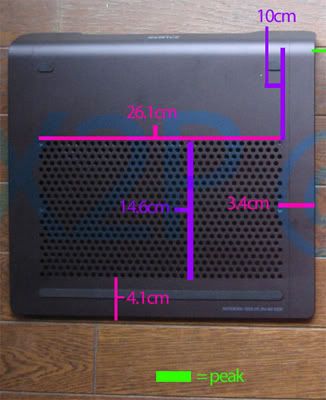


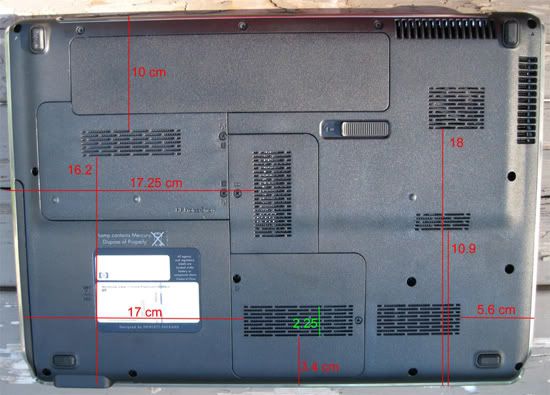
2) Now that you have found the measurements for cooler’s fan/vent location and other measurements flip your notebook over and measure your own vent fan placement. The goal is to see if your notebook will align well with the cooler’s vents. I recommend you take a picture of the bottom and Photoshop or MS Paint the measurements for each location to make it easier for your self after all measurements are taken. If your notebook vents generally hit but only about a centimeter is being missed on top/bottom or both etc it should be fine. (Thank you to the user I have borrowed the image from)


2) Noise. Some do not mind the presence of excess fan noise but there are many who are bothered by almost any noise in general. Many coolers do make a lot of noise but there are some that are quieter then others. One tip is often but note always notebook coolers with higher CFM generate more noise as they either have an extra fan resulting in a 50% raise in noise (mathematically calculating 2 +1 =3, the one is 50% of the 2) or the smaller space in vents to create a higher CFM (Think about blowing through a straw full breath and the noise it would create, now remove the straw and think about that noise which is quieter? No straw).


3) Looks are also important to an extent. Many users want their work space to match and look organized. It is not a good idea if you have an overly sleek notebook such as a new Dell Latitude E and buy a cooler that looks gaming oriented unless it is determined that the cooler will do a far greater job. It would be like taking a Maybach and tossing a racing spoiler on it.



4) Aluminum or a metal in general is a better choice when buying a notebook cooler over plastic for the following reasons. Metal conducts heat, especially aluminum, better then plastic will. Meaning if the contact surface is built out of metal it may provide a better cooling experience. The other advantage of a cooler using its largest surface made out of metal would be strength. Metal is usually stronger than plastic as you should be able to guess.


5) In order to get the best price possible use a site such as:

Canada: www.shopbot.ca
USA: www.pricegrabber.com


Find the lowest price available for the product and find a local store that does price matching. Many stores do this but some require a cash payment in order to allow for price matching.


6) Use common sense

If you would like further assistance on this please fill in the FAQ provided at the bottom of this guide.


Is there anything to be avoided or anything that requires warning?


1) The Targus Chillpad’s are chronically under achieving and not making a difference. The fans are known to cut out, be noise and lastly be a potential a health hazard according to the State of California.

“This product contains chemicals, including lead, known to the State of California to cause cancer and birth defects or other reproductive harm. WASH HANDS AFTER HANDLING”

This excerpt was taken off a Targus Chillpad box and more about this can be found here.

2) Although some generic brands pull through it is generally not a good idea to purchase a generic brand. They tend to use cheaper materials and under perform as they do not really cover vents properly.

3) The USB ports on notebook coolers vary from USB 1.1-2.0 and if it is an issue please check the original manufacturer’s website for details.


Coolers on the Market: Desk or Around the House


Zalman NC Series


These are the most popular notebook coolers here at NBR. It is sleek, sexy and comes in black or silver. Its main feature is its silent effectiveness. It runs at an astonishing 18.0 - 25.5 dBA ± 10 % making it a minor hush while it cools your notebook. Both models are powered by the same fans which makes the CFM for the NC1000 higher but with less cooling space (less vents) it may not reach all the vents and/or fans on some notebooks. They have a special air flow system making a balanced airflow from the vents.


NBR

Zalman NC2000 (B) Review (Written by myself)
The 15.4” Smackdown: Zalman NC1000 VS NC2000 (Written by myself)
Zalman NC1000 Review (Written by Nexs)
Zalman NC1000 Review (Written by P_boucher)
Zalman NC1000 with Dell XPS 1530 Review (Written by WileyCoyote)NEW!

Offsite

Zalman NC1000 Review (www.tweaknews.net)
Zalman NC1000 Review (www.bcchardware.com)
Zalman NC2000 With the Dell XPS 1730 Video Review (Youtube’s iftibasher)
Zalman NC2000 Review (www.techpowerup.com)


Cooler Master Notepal Infinite


This cooler has a unique airflow system similar to that of the Zalman. It is similar to a knight in shining amour with its crosshatched ventilation on the top. A key feature which makes this cooler very attractive to many is that it does not suck air in from the bottom. That means it can be used on virtually any surface, its main cooling region is around the edges. The updated version has replaced the dark grey for silver and added a 4 port usb hub in the rear.


NBR

Cooler Master Notepal Infinite Review (Written by Johnny_T)

Offsite

Cooler Master Notepal Infinite Review (www.liewcf.com blog)
Cooler Master Notepal Infinite Review (www.digitgeek.com)


NZXT Cryo LX


This is one beast of a cooler and was designed straight up by NZXT as a cooler for desktop replacements. Weighing in at 3 pounds this is one big beast boasting not one, not two but three fans. It also has a 4 port USB hub built in back. It is quite a futuristic in your face design kind of like a Spyker. Like many other coolers it comes in black or silver. (it should be noted that some users may not have sufficient power coming out of the usb in order to run the cooler at its full potential, here is a link to an example of this)


NBR


Review of the NZXT Cryo LX
(Written by Garetjax)
Mini Review of the NZXT Cryo LX (Written by Diablo85)

Offsite


Review of the NZXT Cryo LX
(www.bigbruin.com)
Review of the NZXT Cryo LX (www.aphnetworks.com)
Review of the NZXT Cryo LX (www.futurelooks.com)
Review of the NZXT Cryo LX (www.ocia.net)
Review of the NZXT Cryo LX (www.thinkcomputers.org)
Review of the NZXT Cryo LX (http://www.overclockersclub.com)


Enermax Aeolus CP001


This cooler boasts a single 220 mm fan with five blue led lights which can be powered on and off. It has a mesh type cooling rack and once again comes in black and silver. Its unique one fan design has only been seen in a couple other coolers such as the original, brought forth by DigitalCowboy. Unfortunately the Aeolus eats up one USB port on your notebook without replacing it.


NBR

Enermax Aeolus CP001 Review (Written by AHL395)

Offsite

None


Thermaltake T500


Another sucker. This T500 is another cooler that sucks air away from the notebook. There are a few notebooks that do blow air out of the bottom and this cooler may be a great solution. It can be used on most surfaces as the exhaust is on the back of the cooler but only comes in glossy black. It does not replace the USB port used by its DC USB cable.


NBR

None

Offsite

Thermaltake T500 Review (www.bjorn3d.com)


Thermaltake T1000


The T1000 has a similar concept to the Enermax Aeolus CP001. It has a 120mm blue led fan and has an extra USB port onboard in order to replace the USB port used to power it. It blows air up like your average cooler but sucks air from the bottom, rear and both sides of the cooler which is unique to the T100’s design. Coming in a glossy black finish with red sides it has restricted color options.


NBR

None

Offsite

Thermaltake T1000 Review (www.xtremecomputing.co.uk)


Belkin F5L001


This cooler flashes a unique artsy or architectural design that only comes in white and is a budget option for some. The single fan on the F5L001 blows air up allowin warm air to travel and leave through the crevece. It uses one fan in the middle which is a let down.


NBR

Belkin Laptop Cooling Pad/Stand (F5L001) Review (Written by Tiffany Boggs)
A Collection of Quick Mini Reviews of the Belkin F5L001 (Written by Various NBR Members)

Offsite

Belkin Laptop Cooling Pad (F5L001) Review (www.everythingusb.com)
Belkin Laptop Cooling Stand (F5L001) Review (www.cnet.com)


Vizo Xena II/ Vantec LPC-460TX


This cooler is one of many of its kind. It uses a single fan and may be a good option for an average home user. It features a swivel base and can be tilted greatly. It uses a single 70mm fan but does not replace the USB port used to power it. An similar alternative would be the Vantec LPC-460TX.


NBR

None

Offsite

Vizo Xena II Review (hardwarelogic.com)


NotePal W2 (2 or 3 fans)/ Rosewill RNA-7000W/ Lian LI NC-02 = Generic


This is a generic notebook cooler, built off aluminum alloy and comes with 2 or 3 fans depending on size and can support a maximum of a 17” widescreen notebook. There are many other similar models such as the Rosewill RNA-7000W (Especially good for Macbook Pros), Lian LI NC-02, Bytech NC-500 etc. These generic coolers are also at times built out of plastic.


For Reviews there are far too many to list, please use your preferred search engine to locate some.


Coolers on the Market: Portable Users that Need it On the Go


It is important to note that some of the following coolers are hard to find.


Spire Pacific Breeze


This is a compact cooler, light and easy to pack. In the looks department it has blue LEDs on both fans that are even visible during day. This cooler sucks air form the top behind your notebook then blows it horizontally under. It is quite a unique design but if you have a nine cell battery that sticks out the back this cooler is not for you.


NBR

Guide to Cooling Down Your Notebook (Written by Chaz)

Offsite

Spire Pacific Breeze Review (www.overclockers.com)
Spire Pacific Breeze Review (www.geek.com)


Thermaltake T2000


This cooler may be an option if you are a constant traveler but own a notebook up to 15” as it has a slightly different method of cooling compared to similar counterparts. It features dual 70mm fans and is powered by DC USB. Unfortunately like its larger sibling the T500 it does not provide a USB port to replace the one used on your notebook. It also takes after the T1000 as it also has a glossy black finish and ride sides.


NBR

None

Offsite

Thermaltake T2000 Review (www.cdrinfo.com)
Thermaltake T2000 Review (www.ocia.net)


Thermaltake T4000


This portable cooler has dual 70mm fans like the T2000 and a very similar design. It also uses a DC USB to power itself and once again does not replace the port used by the cooler on a notebook. It has the same finish as the T2000 but is more compact and comes with a travel bag. A feature this Thermaltake cooler has over other Thermaltake coolers is that it has a knob in order to provide fan control.


NBR

None

Offsite

None

Coolermaster NotePal D1


The D1 like many of in its class utilizes two 70mm fans but has an intake on the back making it quite helpful as it can be used on a lap as well as a desk still being portable. It has a vented contact surface made of aluminum and similar to that of the Zalman NC series but there is a possibility for un-even air flow. It has a compact cable which is under the cooler when traveling and does replace the USB port used to power itself. It is only available in black for the time being.


NBR

None

Offsite

None


Coolermaster Notepal P1


This cooler is quite basic but stylish. Coming in silver with slight chrome it is slightly defining. Its power button does not only power on the cooler but accents its design. There is a case for the USB port on the bottom as well as a spare USB port but does suck air from the bottom using the standard 70mm fans.


NBR

None

Offsite

Cooler Master Notepal P1 Review (www.trustedreviews.com)
Cooler Master Notepal P1 Review (www.3dgameman.com)
Cooler Master Notepal P1 Review (www.futurelooks.com)
Cooler Master Notepal P1 Review (www.ocia.net)
Cooler Master Notepal P1 Review (www.virtual-hideout.net)


Can I build a Cooler?

Yes it is very possible to build your own cooler as long as the build is willing to put the time and effort in. They usually do work well as you can align fans perfectly to where they are required . For people on a budget and like DIY jobs it may be a great option.

Google is a great place to start to research for making your own coolers. But here is a simple one that one of NBR's members has made.


Passive Notebook Coolers


Passive coolers are a solution that is good for those concerned about every last minute of battery life and require use on a lap or similarly soft surface. Unfortunately many passive coolers do not cool but generate more heat. It is a solution for those wanting a passive or cost-effective solution to a cooler could use something such as a thick wallet, erasers or pretty much anything solid under the back legs of their notebook in order to improve air circulation.


More Cooling Tips


For more cooling tips visit cooling central.


FAQ


If you require further assistance in deciding on a cooler please fill in the following FAQ:


1) Budget

2) Is noise an issue for you? Are you annoyed but noticeable noise?

3) Post a picture of the under side of your notebook along with basic measurements like shown earlier in this guide. (just link to a previous post if your notebook has been posted before)

4) Do you have a color preference?

5) Any brands you would like to avoid?


Did you like this Post? Did you learn something from it? Then vote for it in the NBR Amazing Content Contest

Saturday, September 22, 2012

Laptops need air!

Ever think your laptop is heating up too much? Do you, like most others, use your laptop on the knee? If so, the laptop is likely not to get proper ventilation. This can lead to expensive hardware problems, and even health problems.

Q. Why get a hot laptop computer?

Laptop A. Are pieces of precision equipment. Just imagine that a group of very clever engineers had to design a way to their goal of all equipment from desktop computers in the small space of a mobile body. When the laptop is on, the CPU and heat generation, just like your computer desktop. The difference is that removing this heat has to be handled differently.


 What happens is that gets direct heat away from the CPU using a metal structure to a series of copper copper fins. Copper is an excellent conductor of heat. Laptops generally contains the lower air intake. He sucked air blown past hot and copper fins, and to the rear or side of the laptop.
The laptop will be the hardest working, will create more heat through the CPU, so the air is hotter out. If you use your laptop on the knee that you have, or on a soft surface, there is a great chance that you withhold the amount of air under the laptop. Cool outside air without being absorbed, can not be of the laptop not remove enough heat fast enough, so heat builds up in the body laptop.

In extreme cases, it will get hot laptop to shut itself down, as a precaution. Do not do it so as not to damage internal components due to high temperature.

Can also occur if overheating becomes blocked your heatsink (copper fins) with fluff or dust. In this case you will need to take your laptop to a laptop repair shop to have it cleaned out. Or check out this post to learn how to clear the dust from yourself from your laptop.

Q: What can I do to avoid overheating?

A. Ideally, all the laptops that we use our office - but this takes some advantages and fun to use a computer. A simple solution is to use a laptop on a lap tray - you know those things that you used when eating in front of the TV?

Treat yourself to maybe something like this: Belkin Laptop CushDesk

Or maybe try something like this: Logitech laptop cooling N100 knee panel with fan

In conclusion - try to avoid using your laptop on soft surfaces and make sure that they get a lot of air!

Questions and answers about Microsoft's virus scam

I had promised some questions and answers about the scandal with the caller claiming they are from the 'Microsoft' and you have some kind of virus on your computer.

And will add more questions and answers soon, but here are some common questions that people ask.

Q. Do you claim from Microsoft?

A. No. Microsoft absolutely do not make any calls of this type at all.

Q. How do they get my phone number?

A. It is not clear exactly how they get hold of phone numbers. Some people have suggested that they simply read through the phone book. But there are cases where ex-phone numbers of the people are newly or directory phone numbers setup, and they still receive calls.

Q. How do you know my name and address?

A. It will be interpreted easily if they are through reading a book or a similar telephone directory. Copy up on the Internet the names addresses and phone book list.

Q. I have signed on the lack of access to telephone marketing calls - why they are still ringing me?


 A. In every country there are optional subscription service where you can request not to receive any marketing phone calls. For example, in the United Kingdom called the Telephone Preference Service (TPS) and it's a simple matter to add your phone number to their list and marketers must reputed to an agreement not to contact you. However, even if you signed on these services, it still shows you get called by these people. These are scammers in breach of these agreements and they do not care.
Q. I followed their instructions about checking things but I did not download any software remote control. Am I in danger?

A. Maybe not. If you do not load any remote control software, or anything else they ask you to go to on the internet, and there is very little likelihood that they can be turned any virus or malicious software on your computer. But there is no harm in running a simple scan with anti-virus software and your anti-malware Rating -.

Q. They took control of my computer with a remote control program. Am I in danger? What do I do now?

A. Yes. Once that allows them to access remote control of your computer, you have no idea what might have been done. It is possible that these will be from stealing information from your computer, log on to such details Amazon / eBay / etc or online banking information. It can also have installed viruses or other malicious software that can sit there and steal more information in the coming weeks and months while using your computer.

Depending on the remote control software they used, check the Add / Remove Programs list and see if there was anything new related to their software for remote control. If there are, uninstall it.

Follow the steps in my viruses and malware computer manual removal.

If you are in doubt, and consider getting a computer repair man to perform a full check on your computer.

Only when you are happy that no infection, and to consider changing any important site logins and / or details of online banking. I do not want to change this if there is a chance still catch you, so that the virus may send or malware only new details to the fraudsters.

Some people have mentioned do full survey of Windows and reinstall. I think that's a little excessive!

Q. They took control of my computer, and now desktop icons disappeared my. How can I get it again?

A phone call from "Microsoft" for the virus is a scam


If you receive a phone call claiming to be Microsoft's or any person claiming to work for them, I tell you that you have a virus on your computer that will help you fix over the phone, all of this is a scam. Hang up the phone, do not let them remotely access control to your computer and do not give them any money.

Note: There is a link at the bottom of this post to provide updated for 2012 on this scandal, some questions and answers and remove malicious software manual virus.

This scandal has been done quietly tours in the UK and Ireland since 2009, but at least it seems to be on the rise. Scandal goes like this;

Families receive a phone call from someone claiming to be from 'Microsoft' and they are told that there is a serious problem with HIV their computers and provides the student to help solve the problem.
Will get a head of a hard sell caller with respect to all kinds of bad things that happen to their computers if they do not solve the problem immediately.
In an attempt to gain the confidence of households unintentionally, callers will be directed to the Event Viewer in Windows which shows details about various hardware and software issues and Windows. This event viewer always full of messages, even on a computer healthy, but the caller will convince them that these are the warning signs of an impending disaster.
When the caller has confidence, they ask the householder to go to a website and download a remote control program that will help them solve the problem. After downloading this, the caller will be taking control of your computer, you will see the Lord moving the mouse pointer around while not open many programs and folders. The caller will claim they know exactly what the problem is and how to solve them.
Then they will ask for credit card details to a piece of software that will remove supposed to "virus."

 Customers should hopefully already ringing alarm bells at the mention of credit card details and end the conversation. The software that they sell to repair the computer does not do anything except tell you between now and then that everything is fine, all viruses have been removed. But in fact, it can be loaded all types of malicious software to your computer.
However, you may already part of the damage the scandal to get done when the customer download remote control program. This can be a program also have the ability to sit in the background for several months or years, and steal personal information from your computer such as bank login details and other personal details that could be used for the purposes of identity theft. Can also be connected using this software to infect your computer with viruses and malware real.

Quote from Microsoft:
"Microsoft takes the privacy and security of our customers and partners personal information very seriously. We advise customers to treat all telephone calls unwanted with skepticism and not to provide any personal information to anyone over the phone or online. Should any person who receives a call from someone undesirable claiming to be from Microsoft hanged. we can assure you that Microsoft does not make these kinds of calls. "

"For more information about this scam and how to protect yourself against this, please click here"

Our Tip:
If you receive one of these phone calls unwanted, and hang not download anything they ask you to. And certainly do not deliver the details of your credit card, just because someone mentions known name 'Microsoft'.

If you have allowed them to control your computer, or download the 'reform' software, it is possible that they hit your computer with a virus or other malicious software. To reduce the possibility of future issues of identity theft and computer problems due to viruses or malware that may have downloaded, we strongly recommend that you take your computer to a reputable computer repair shop to have it scrutinized.

Speed ​​up your PC or laptop


And your computer is running slow? It takes ages to start and get on the internet? It does not take long to start the program? Does not seem like it is working hard but not getting anywhere? If so, you probably have a classic 'very slow computer' complaint. But fear not, all is not lost. I'm going to take you through some very basic steps that should make a noticeable difference in the performance of your computer. These are all steps your computer repair shop will do if you take it in for up melody. But you can save yourself a bit of money and do it yourself.

When the implementation of the PC tune-up on a slow computer, you need to decide where to start? Will likely each of these steps in the completion time, but doing the right steps first can save a lot of time in the long run.

There is no virus or malware activity being clear?

When you turn on your computer in Windows, is there running programs that do not recognize? A pop-up appears on the screen warning about viruses or ask you for money? When you're on the Internet, do not take sometimes browser you web pages different than you had intended?

If the answer to any of these is yes, then you need to assume you're starting from infected computers. The first steps will be to remove the virus or malware that is causing the problem, and then you can follow up the melody. Read our guide on removing a new computer virus or malware.

If not, let's take a look at the computers themselves.

This is a new PC or laptop reasonable, or is it too old?

One of the main reasons for the slow running computer is that you do not have enough memory to perform the tasks you ask it to do. From memory, RAM means. This is the memory used by the computer while it is running. Each program is running uses a bit of memory, and you can easily get to a situation where the memory is full. When this happens, the computer is much slower because every time you want to do something, it has to unload a bit of RAM and writing to the hard disk, and read some other things again from the hard disk to RAM, and again and to forward, and this can be very slow.

Important: Do not confuse the memory (or RAM) with the hard disk. Hard disk where you store all your documents, videos, photographs and programs. They remain on your hard drive even after the computer is turned off. The hard drive is long-term storage. Memory (RAM) is a short-term storage is used only while the computer is running.

We need to make sure the amount of memory your computer has. One of the simplest ways to do so is the pressure right on My Computer and select Properties. Depending on whether you are running Windows XP, Windows Vista or Windows 7, you will see the screen to be different, but must display the amount of memory (RAM) has your computer.


 How much memory is enough?
This is really different from the way what operating system you are using, and what you tend to use your computer for. But here are some general minimum recommendations.

Windows XP, it will run on the OK RAM 512MB, but I would recommend at least 1GB of RAM.

For Windows Vista and Windows 7, and will run on 1GB RAM, but I would recommend at least 2GB RAM, if not more so.

Before you go buy more RAM, make sure to check whether you have a spare RAM slot in your computer or laptop. After all, you will need somewhere to plug a new memory. If you do not have slot parts, and you will need to remove one of the existing memory sticks to save space, so make sure to order enough to cover the upgrade and what you are removing.

If you are thinking of asking for more of RAM, read our guide on finding and arranging the right memory for your computer.

Performance Tune-up

At this stage, we can assume that we run on a machine is infected to some extent and your computer is running slow because only clogging it up with several years of daily use and need to tune up.

Performance tune-up basically means getting rid of unnecessary files, and remove unwanted programs, and verification of viruses or malicious software hidden, organize your hard drive and trimming in general to reach what is working in the background so your PC is free to do things you want to to do it.

Fortunately there are free, handy tools to download from the internet that will allow you to do all this yourself. Click here to read our guide on the implementation of a tune-up on your computer.

Once we hope you are done with all of these steps you will find your computer run faster and return to it's old self.

Clean your computer with CCleaner

CCleaner is a simple and great free tool that is truly effective in cleaning your computer. There are a number of excellent features that can be used safely by anyone, including cleaning, cleaning the registry and startup test program.

One of the most common benefits of CCleaner quoted by computer repair professionals is that the file is the safest and registry cleaner available. What this means is that you can safely use to clean up the remnants of files and registry entries without having to worry abut damage your computer, or your computer does not start again. Many registry cleaners are still far very aggressive in their search for the stripping of unnecessary registry entries possible. CCleaner but plays it safe and highlights only those that can certainly be removed without causing issues.

Note: Although this is the safest cleaning Registration Tool and I'm aware of, I would still recommend making a system restore point before you turn it on. Just in case. It is almost certainly not be needed, but why not be completely safe rather than later sorry.

Read more about the program CCleaner.

Download:
CCleaner


The second tab is a registry cleaner.
Find any problems with your registry, click "Scan for issues 'button. Will submit a report likely that there are several hundreds of issues that can be fixed. And usually these are safe to be fixed, click on the button' reform issues selected"to address them.

The third tab is for other tools.

The first tool provides a way to uninstall programs from your computer.

Take a look down the list and see if there are any programs that do not use anymore. If you are sure you do not need them, you can help speed up your computer by removing.

Note: Be careful! Do not remove the program that you're not sure about. May not have installation disks to reinstall later.

The second tool lists all the startup programs on your computer.

The programs can start too many make the computer very slow to boot up. Ask yourself if you need all those programs that start as soon as the boot into Windows. If there are things that you think you can remove, highlight the relevant row and click Disable.

Try to reboot and make sure everything still works OK. If there is a problem, or something does not work, you can return to CCleaner and re-enable this program startup. (This is why I did not click the Delete button here -! Just in case)


 The next tab is System Restore, which lists each of the last system restore point, and allows you to delete unnecessary old. It is unlikely that you will really need to do so.
The final tab is wiper motor, which allows you to erase secure areas of the hard disk. When you delete a file in Windows, and not really gone file. But the indicators used by Windows to say where this file exists on your hard disk to get removed, so no longer indexed file. Been marked space on the hard disk where the file is your also can be used again, so eventually space will be overwritten with new files. But at the same time, this file is still recoverable using data recovery tools. If you want to spend a safe free space on the hard disk, drive wiper is a good way to do it.

Note: there is also a safe way to erase the whole hard disk (free space and the space occupied by files). If you choose the option to scan the entire drive, all files will be lost and will not be recoverable. I think carefully about whether you really want to wipe the entire drive or not. And wipe free space just be the usual option to choose for safety.

How to remove a computer virus or malware - Do It Yourself Guide


The virus or malicious suddenly appeared on your computer? Do you want to try to remove it yourself. Here are the do-it-yourself guide to simple remove a computer virus.

This guide will be useful in cases where the virus or other malicious software suddenly appeared on your computer. I mean that you are getting now popups or full-screen images blocking the desktop. Or maybe you get messages from what looks like anti-virus software, but you know they are not really anti-virus software. We call this rogue anti-virus programs, and its sole purpose is to scare you into buying some useless products in the hope of removing the virus.

Please follow these steps in the exact order they appear.


 Step 1. Do not panic!
Can remove most computer viruses without causing permanent damage to your computer or your files. If in any doubt, you should consult a professional computer repair. But in many cases it can try to remove the virus or malicious software yourself.

If you are going to follow this guide, please print these instructions first, so that you can get them sitting next to you while you work through the following steps.

If the virus has installed itself in recent times, and the bad things that are happening every time you turn on your computer, there are two main things that need to be done. First - you need to stop this virus program from starting at boot time because it can not be removed correctly if he was actively working. And second - you need to remove the actual files they are installed on your computer.

Step 2. System Restore

To stop the virus or malicious software program from the start every time you boot your computer, you can use Windows System Restore facility to undo the settings to an earlier point in time. Buried somewhere in your registry, there is a setting that tells the virus program to start at boot time. It is beyond the scope of this article to try to find this registry setting, so the simplest ways is to use System Restore. What you will do is restore the registry settings to exactly what they were yesterday, or one day before, or different dates in the past.

Please note: System Restore will not affect any of your personal files (emails, images, documents, music, etc.). Will not lose any of your files by running System Restore. Not restore your computer completely. It rolls just re-registration and some core Windows files.

What you need to do is to work on exactly when you noticed for the first time activity of the virus, popups, etc. writing that date. Do you want to restore the registry to at least a day or two before that date. Because this is a good version of your record does not have a record of a desire to start the virus program. Once we restore this version is good, and the virus will not run even when you turn on your computer. Which gives you the opportunity to remove leftover files.

Depending on how your computer is infected, you may or may not have access to restore order after booting the computer normally. So I prefer to run System Restore from Safe Mode and Windows.

Access to Windows Safe Mode, start your computer, and once the manufacturer's logo disappears, starting F8 repeatedly pressure. After a few seconds, the list will especially black and white appear, and you can choose from several options to boot. Depending on the version of Windows exactly, options shown may vary slightly, but will always Safe Mode be included in the list.


Select the option called Safe Mode and press Enter. Windows boot after it in Safe Mode.

When Windows starts up, do not worry that Windows Safe Mode looks a bit weird compared to normal and your view of Windows. Because Safe Mode (which is typically only used to correct problems and Windows), it carries only a minimum of drivers that are absolutely necessary for running Windows, so graphics will look a bit strange.

Now you can begin to restore order.

On Windows XP, Windows Vista and Windows 7, go to Start> All Programs> Accessories> System Tools> System Restore.


When the list is displayed of restore points, and choose the one that is at least a day or two before the virus appeared for the first time. Click Next or OK until the program begins to restore registry settings. When this is done, you will need to restart your computer. When you restart your computer, you should be able to go back to Windows normally (do not press F8 this time) and a virus or malicious software should not be popping up. This does not mean that it is removed, but it is not started at boot time.

If it still does show popups, tried to restore the entire system process again, but I go back for a few more days to get past a good restore point.

Then we come to remove the virus files.

Step 3. Malwarebytes Anti-Malware

Before you run a scan with your antivirus program, you and I strongly recommend running a full scan with anti-malware Rating. This is a wonderful free anti-malware scanner that captures a lot of things that you have regular anti-virus software will miss.

Download Malwarebytes Anti-Malware from the Internet, install it, and run a full scan. Remove all the files that it finds bad by making sure they ticked then click the Remove button.

Can be found on the entire step-by-step details in my post about Malwarebytes Anti-Malware.

Step 4. Antivirus scanning

Next you will need to run a full scan with your antivirus software program. (I'm assuming here that you have antivirus software installed. If you do not, some of them are decent Norton, AVG or Kaspersky. Download and install one if you do not have antivirus software currently installed.)

Every anti-virus program has slightly different instructions, but if you double click on it, you should get a new window on the screen. Follow the link or button to run the scan, and make sure you select a full scan to make sure that you have not verified the entire hard drive for bad files.

Upon completion of the scan, make sure that all the files have been removed. Depending on which anti-virus you have, and sometimes there will be a button to press to remove or quarantine the files. Make sure of it.

Step 5. Sit back and relax

If everything gone well, and viruses is one of these planets easily removed, should now be a clean computer. Give yourself a well done and bask in the glow of identifying your computer yourself.

If you are happy to do these steps yourself, why not try our computer until melody is also evidence.
Windows Pre-Boot Menu with Safe Mode option
Please Note: This guide was prepared to remove the virus home computer users who have a basic understanding of Microsoft Windows and run the tools directly. This is not a substitute for hiring an experienced professional computer repair to remove a computer virus or malware on your behalf. However, in cases of simple and direct surprising to note virus infection (is here today, but there was no yesterday) These steps can be removed problem in a large proportion of cases. There are additional steps and tools that professional computer repair will be used that are outside the scope of this article home computer user, so if in any doubt, ask the man fix your computer for help.
Windows 7 Choose System Restore Point